Install the agent
Install and authenticate a supported PulseHA endpoint.
Open Network → Devices → Add Device and choose the endpoint platform.
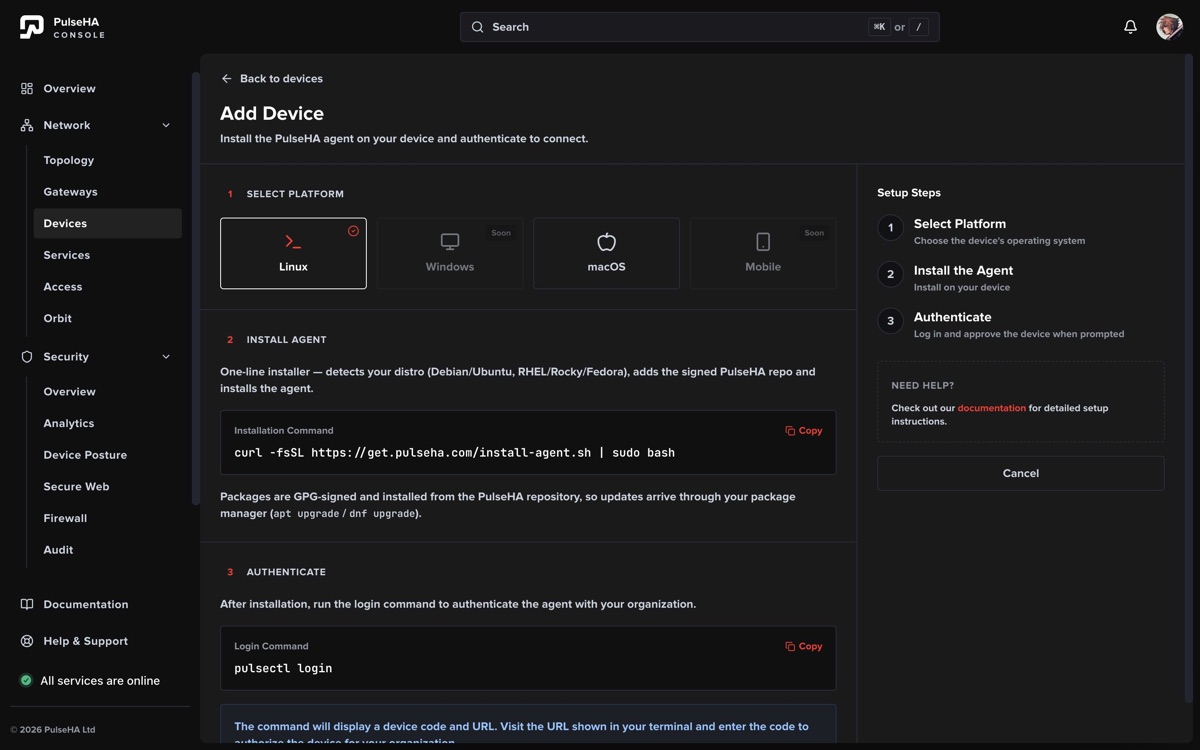
Select a supported platform, install the agent, then complete its authentication step.
Linux#
curl -fsSL https://get.pulseha.com/install-agent.sh | sudo bash
pulsectl login
Open the URL printed by pulsectl login, enter its code, and approve the device in your browser.
Windows#
Download PulseHA-Agent-Setup.exe from Downloads, run the installer, then open PulseHA and sign in when your browser opens. Windows has no pulsectl command.
macOS#
Download the Apple Silicon or Intel package from Downloads, install it, open PulseHA, and choose Continue in Browser. macOS has no pulsectl command.
Expected result#
The endpoint appears in Network → Devices and transitions from Pending to an active connection state. It receives only services allowed by access policy.
iOS and Android are coming soon. If authentication succeeds but access does not, check device status, posture, access policy, and gateway health in that order.